Changing Upload Size Limit
This guide provides step-by-step instructions for increasing the file upload size limit in the MAXRES Construct authoring tool. These instructions can only be performed by users with access to the Author project files.
Steps to Change Upload Size Limit
-
Navigate to the Author Project
- Access the Author project in the system.
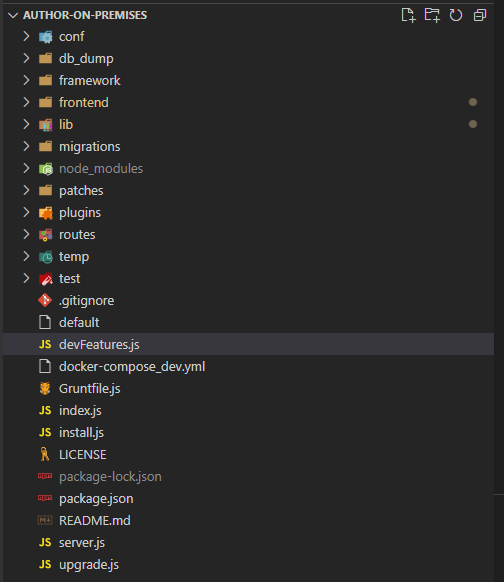 Figure 1: Navigating to the Author project
 -
Locate the Configuration Folder
- Find and expand the conf folder within the project files.
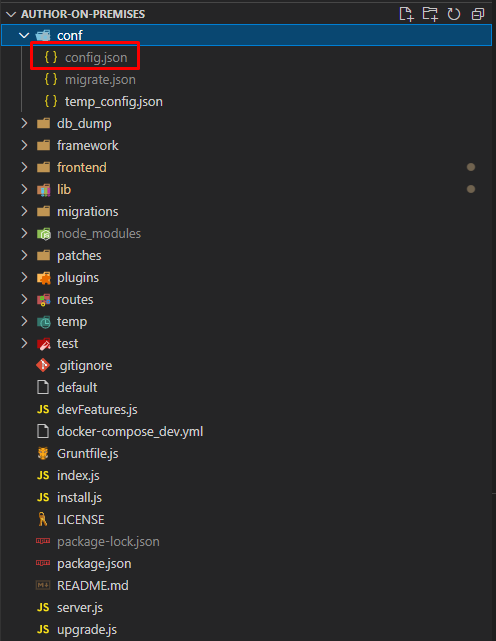 Figure 2: Configuration folder
 -
Open the Configuration File
- Open the config.json file to view the current configurations of the authoring tool.
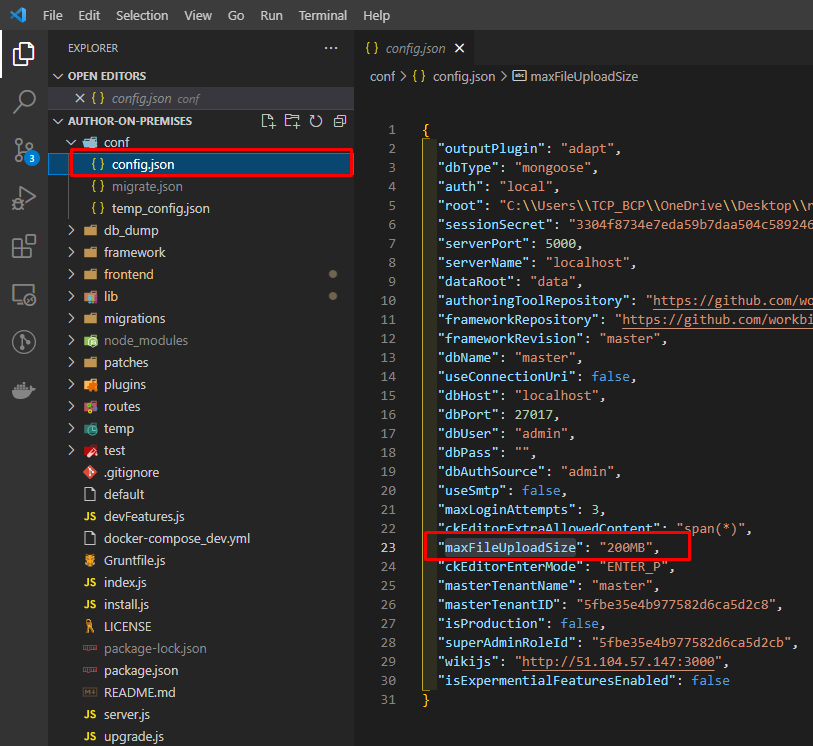 Figure 3: Configuration file
 -
Modify the Upload Size Limit
- Locate the maxFileUploadSize property in the file.
- Update the value as needed, using the format number:MB (e.g.,
1000MBfor 1GB).
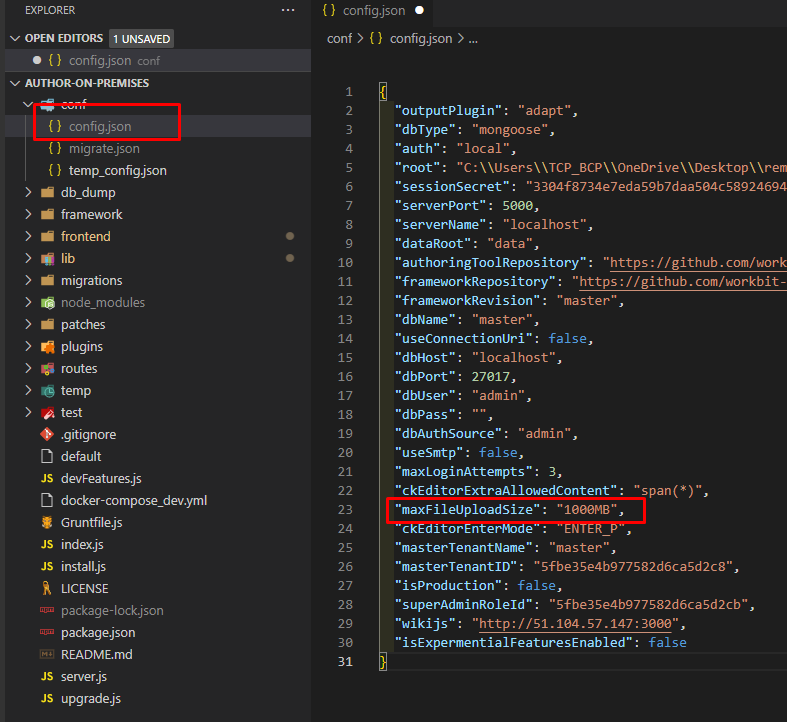 Figure 4: Updating the upload size limit
 -
Save and Reboot
- Save the updated configuration file.
- Reboot the server to apply the changes.
-
Verify the Changes
- Open the authoring tool and navigate to the asset upload form to confirm the updated upload size limit.
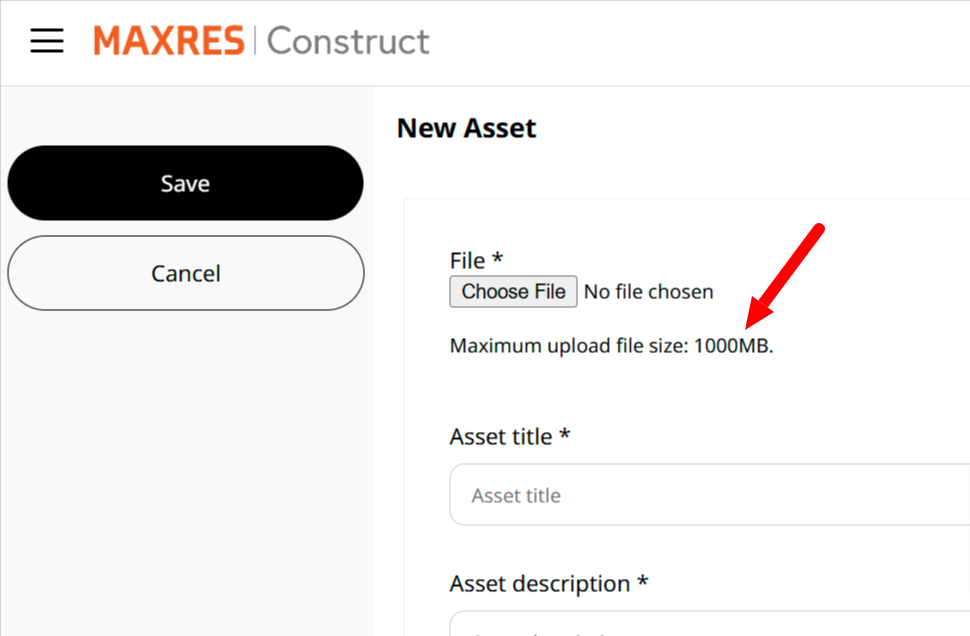 Figure 5: Verifying changes in the authoring tool
Once completed, the file upload size limit will be updated successfully.